Before your child taps Play on Roblox, there are seven decisions worth checking—not one magic safety switch. The game may be age-appropriate, yet its chat, friends, purchases and time limits can still need attention.
Short on time? Start with your child’s correct age, Content restrictions and Communication. Then work through the remaining five checks. The goal is a setup that fits your child, not a promise that no problem can ever occur.
This is the practical companion to our Roblox safety coverage: exact menu paths, sensible starting points, the limitations worth knowing, and two free printable guides. You don’t need to become a Roblox expert.
Jump to a setting: 1. Age · 2. Content · 3. Games · 4. Chat · 5. Friends · 6. Spending · 7. Screen time. Free printable checklists ↓
First, open the controls that belong to the parent
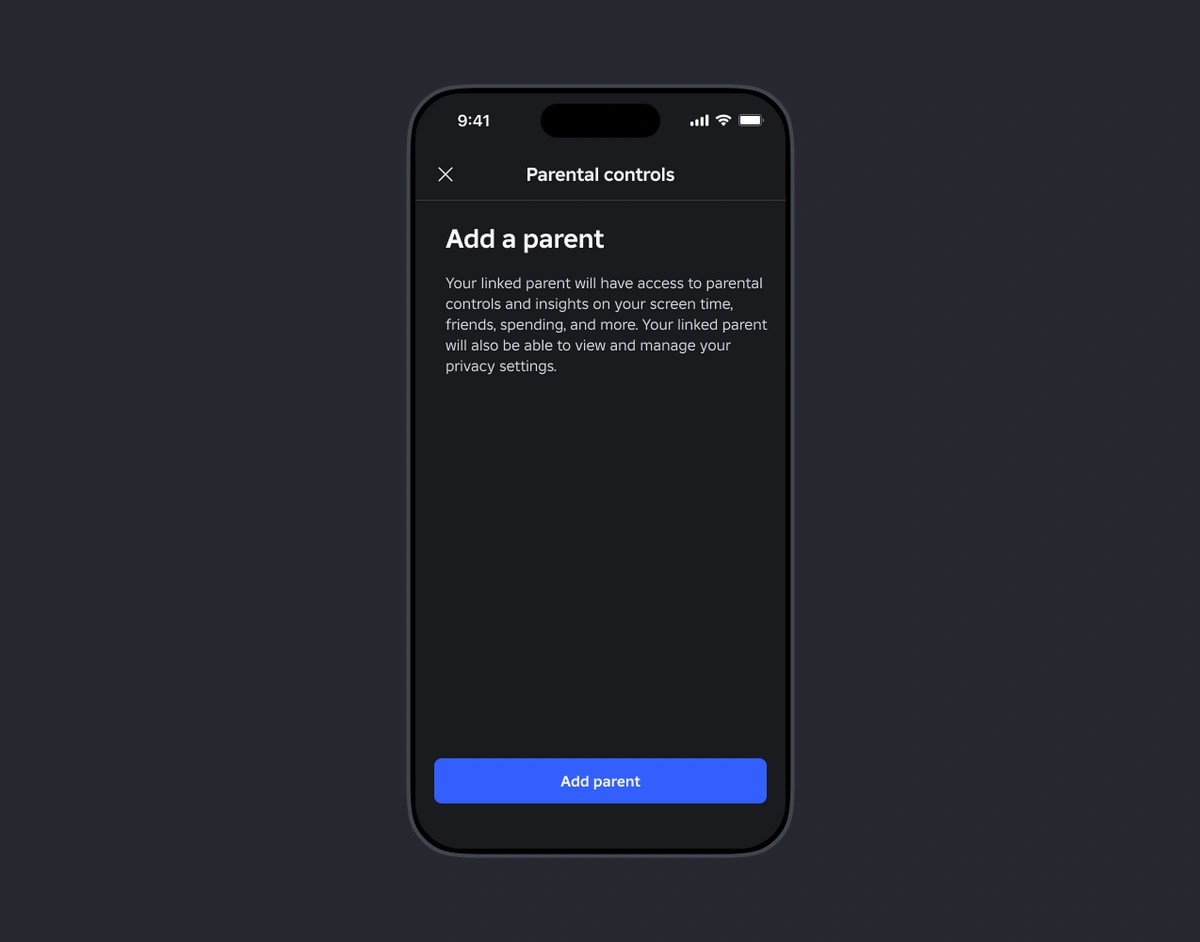
From your child’s account, go to Settings → Parental controls → Add parent, and follow the prompts to link your Roblox account. On your own account, open Settings → Parental controls → your child’s account. On mobile, Settings is under More; on desktop, use the gear icon. Scroll to Settings you manage. Roblox’s current setup instructions show the steps.
No linked account yet? Roblox also offers Parent mode on the child’s device for many controls. It does not provide every alert—spending notifications, for example, require a linked parent account. If you plan to check settings regularly from your own phone, linking is the more convenient path.
The seven checks, in the order I’d make them
1. Confirm the correct age before choosing anything else
Where: Parental controls → your child’s account → account/age information. Starting point: confirm the birthdate is accurate and follow Roblox’s age-check instructions when a feature requires one. Don’t change an age to get around a restriction.
This matters more in 2026: Roblox Kids generally serves ages 5–8; Roblox Select serves ages 9–15. Available games and communication options differ. The exact rules may vary by region. See Roblox’s 2026 account changes.
Is your child nearing their ninth birthday? Read what changes when Roblox moves from Kids to Select before reviewing which newly available games are right for them. More catalogue access does not automatically mean chat opens up.
2. Pick a content-maturity level you can explain
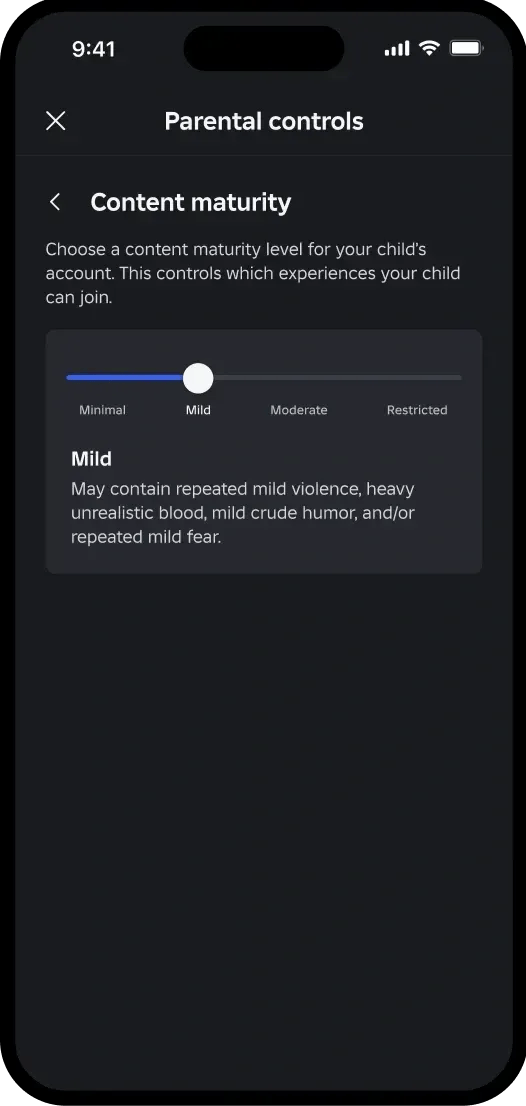
Where: Settings you manage → Content restrictions → Content maturity. Move the slider and read the description of each level.
Starting point: for a younger child, begin with the most restrictive level that supports the games you have reviewed together. Minimal doesn’t mean “nothing uncomfortable”: Roblox says even Minimal can include occasional mild fear or violence. Mild permits more of those elements. A label is a filter, not an individual-child suitability guarantee.
3. Review specific games instead of opening the entire catalogue
Where: Content restrictions → Allowed games or Blocked games. For Blocked games, choose +, search for the experience and confirm Block. For Allowed games, review requests and remove approvals that no longer make sense.
Starting point: approve or block individual games after reading their descriptions and, ideally, watching a little gameplay. A blocked game may still show up in search; Roblox says a block applied while a child is playing takes effect on their next entry.
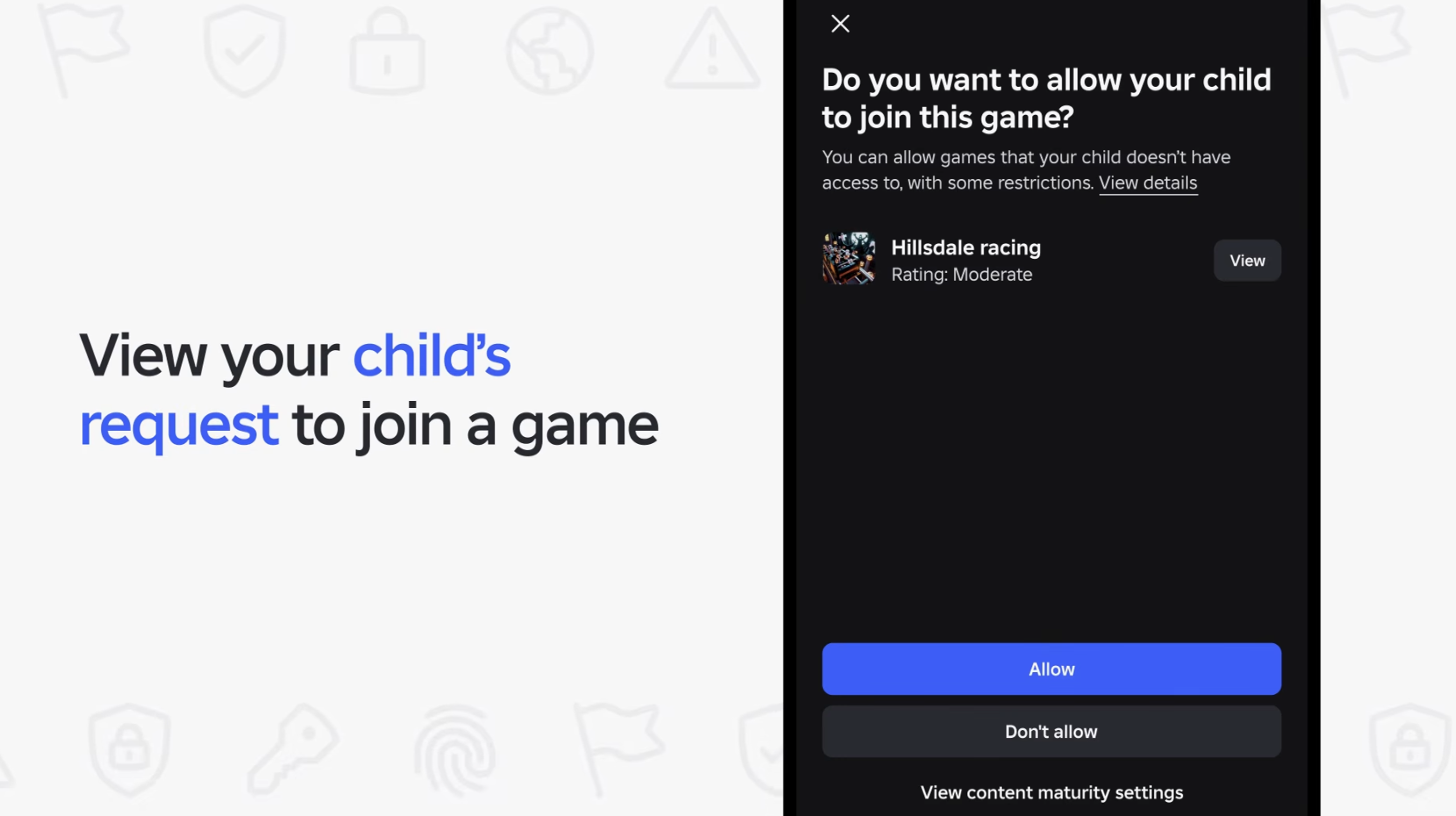
Here’s the trap: one requested game doesn’t require raising the maturity level for every game. A game-specific decision is often the more precise tool.
4. Decide whether chat is needed at all
Where: Settings you manage → Communication. Review available experience-chat, direct-chat and party options for your child’s age. Roblox says an age check is required to access chat, and communication features differ by age and region.
Starting point: if your child doesn’t need chat to enjoy the chosen activity, leave optional chat disabled. For children under nine, chat is disabled by default; parents may be able to allow certain text-chat features after age checks. Remember that a friendly avatar does not verify someone’s identity. Official communication settings.
5. Check friends, visibility and who can join
Where: review Friends on the child’s parental-controls dashboard and Visibility & private servers under Settings you manage. Check who can see their online status, current game and permitted private-server access.
Starting point: choose the narrowest visibility that works for your child’s real friends. Review unfamiliar connections together. Roblox also has Trusted Friends permissions for eligible accounts; discuss what the word trusted should mean outside the app.
6. Put a real boundary around purchases
Where: Settings you manage → Spending restrictions → Monthly spending limit. Roblox currently documents No limit as the default; a parent can choose an amount, including zero. A linked parent can also configure spending notifications.
Starting point: if a child should not make independent purchases, choose a zero limit and a simple rule to ask before buying. Limitation: Roblox’s limit does not cover gift-card redemption and may not apply to some console purchases. Set console/device purchase controls separately. Roblox’s spending guide explains the exceptions.
7. Set a time limit, then inspect the games behind the minutes
Where: on the child’s parental dashboard, open Screen time → Manage to choose a daily limit where available. Then look at Top games to see what your child actually played.
Starting point: agree on a limit that doesn’t displace sleep, movement, homework or connection. Don’t treat total minutes as the only signal: a child happily building with a friend and a child repeatedly frustrated by a competitive game may need different conversations. Roblox says parents can continue viewing time insights after children begin managing their own time limits at 13.
No control panel can decide what feels wrong to your child
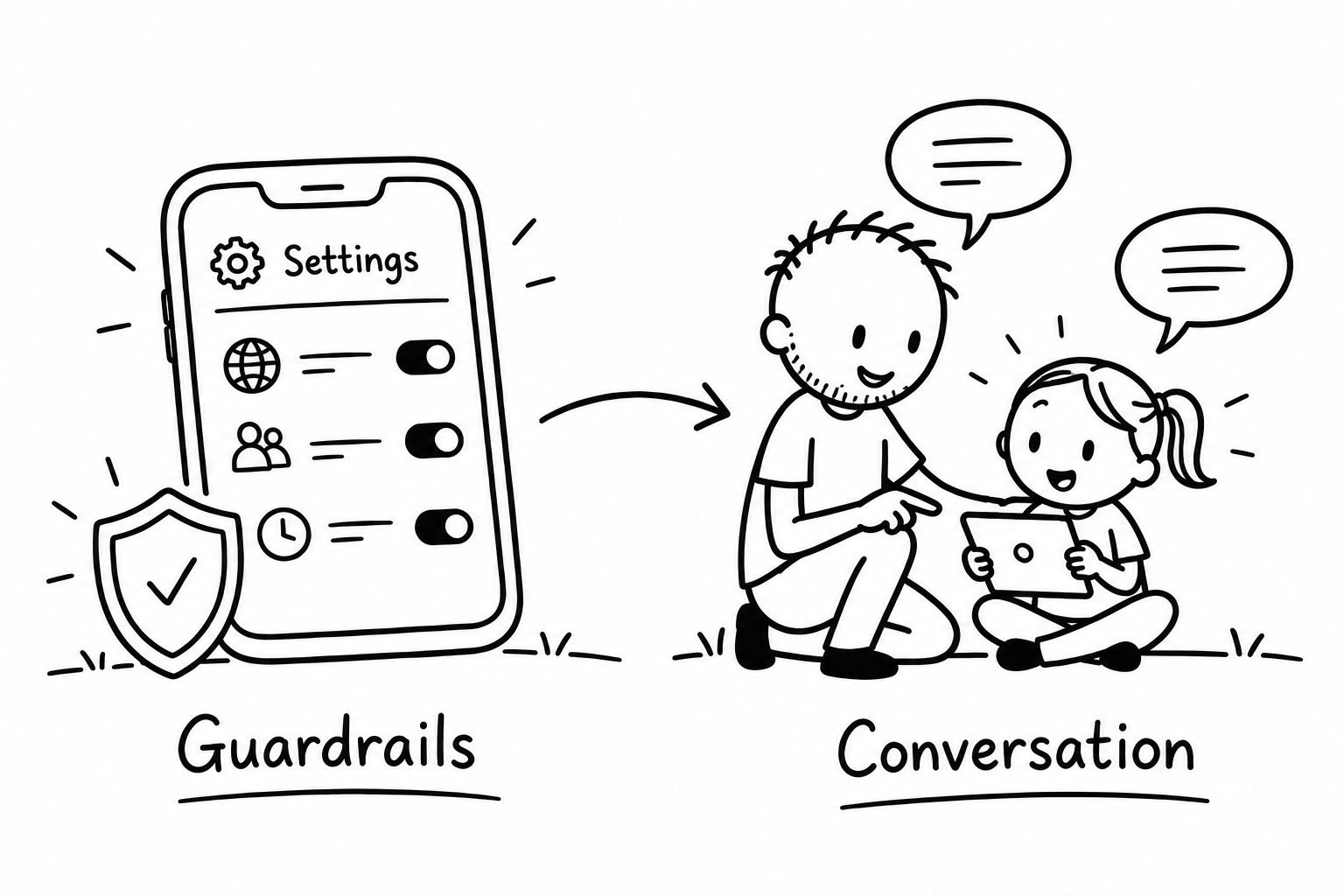
Imagine a game passes the content filter but a player pressures your child to keep a secret—or the game leaves them upset after repeated losses. Neither situation is fully answered by a maturity slider. The platform sets useful boundaries; children still need an easy way to ask for help.
Before a new game, agree on three things: don’t share private details (school, address, phone number or photos); stop and tell an adult if a game or interaction feels uncomfortable; and block or report together when appropriate. Make reporting a problem feel safe, not like an automatic punishment.
Three questions to ask during a five-minute game tour
- Before: “What is this game about, and why do you want to play it?”
- During: “Who else can join or communicate with you here?”
- After: “What was fun, what was frustrating, and what would you do if something felt strange?”
This small conversation makes the settings personal. The goal is not to supervise every click. It is to agree on boundaries and notice when a particular game isn’t a good fit.
Keep the free Roblox checklist where you’ll use it
Prefer something you can check off? The one-page quick card is for a fast setup review. The six-page illustrated parent playbook includes longer explanations, conversation scripts and a reusable family agreement. Both are free—no signup required.
Download the one-page Roblox quick card →
Share on WhatsApp → · Share by email →
Explore other parenting questions · What is your child’s screen teaching them? · What video games can teach about trying again
Sources and a note about what this guide can promise
Reviewed against official Roblox guidance on 15 October 2026: Parental Controls Overview, Parent setup, Spending limits and 2026 age-based accounts. For wider media boundaries, see the American Academy of Pediatrics family media plan.
I’m an engineer dad sharing a practical starting point, not a Roblox employee or child-development specialist. Settings may change by age, region, device and subsequent updates. No single configuration guarantees safety.

