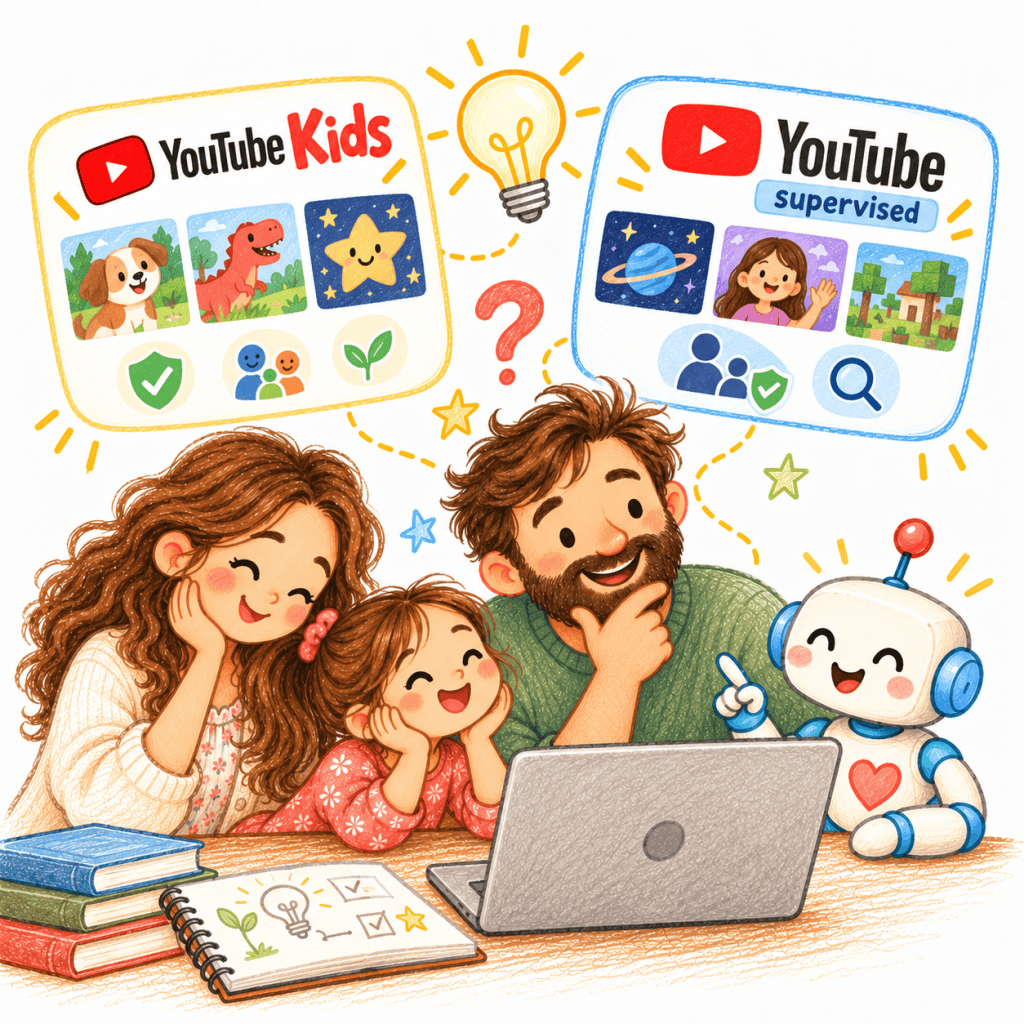
Your child wants a particular science explanation or gaming creator that isn’t available in YouTube Kids. Regular YouTube would make it easier to find—but it would also open a much larger world of videos.
My starting rule: choose YouTube Kids when you want a smaller, more controlled video library; consider a supervised child account on YouTube when your child genuinely needs more choice and is ready to explore alongside you. Neither option guarantees that every recommendation will be right.
This guide is for parents navigating that transition, often with children around 6–12. Google’s official comparison describes YouTube Kids as a separate app with a smaller collection, while supervised YouTube uses the wider YouTube experience with parent-managed content limits and reduced features. See Google’s comparison.
First decide who should choose the videos
There are two different questions hiding inside the familiar screen-time debate: How much content should be available? And who should decide what comes next?
In YouTube Kids, parents can turn Search off or use Approved content only, choosing the videos, channels and collections their child can watch. If your child wants a few familiar subjects or you prefer to approve each new channel, that may be enough. Google explains the available controls.
A supervised child account has access to a larger video and music library, with a parent-selected content level and the ability to block channels. That extra freedom can be useful when a child is researching a specific topic or creator. But it is filtering, not parent approval of every available video.
The comparison that matters at home
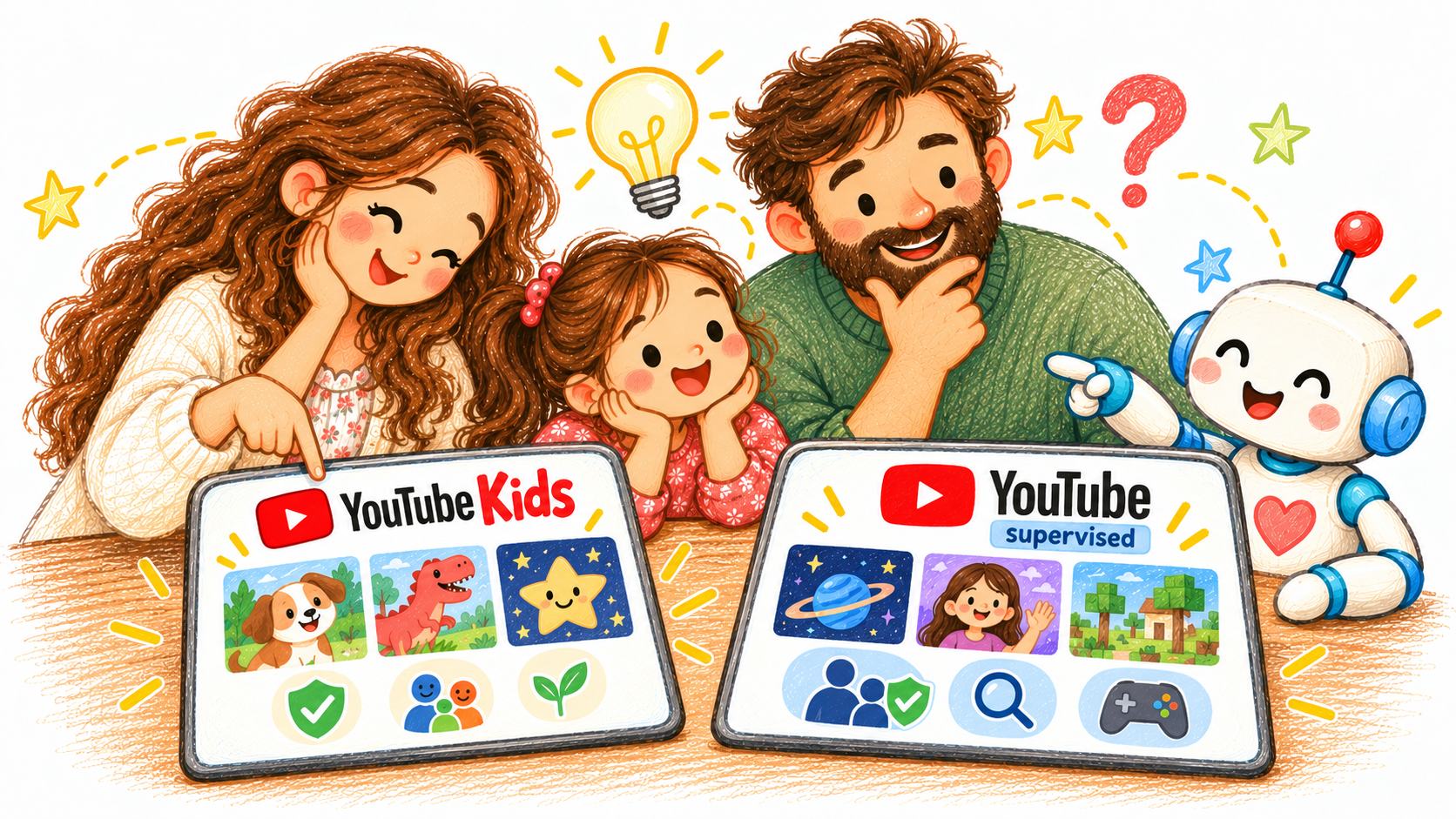
| Parent’s question | YouTube Kids | Supervised YouTube |
|---|---|---|
| Where does my child watch? | Separate YouTube Kids app or website | Main YouTube app with supervised child experience |
| How much content? | Smaller selection: Preschool, Younger (5–8), Older (9–12) | Larger selection, restricted by a parent-selected content level |
| Can I handpick the videos? | Yes, using Approved content only | No comparable approve-every-video mode; select levels and block channels |
| Can videos still be recommended? | Yes, except within the content you explicitly approved | Yes, from the wider filtered library |
| How can I manage time? | Kids timer and applicable family controls | Family Center / Family Link; applicable Shorts-feed controls |
These are Google’s published choices, reviewed on 18 October 2026, not the result of a test on every phone, tablet or account. Features and labels can vary by location and rollout. Original comparison · Supervised-account controls.
YouTube Kids is not a fully hand-reviewed library
It is tempting to imagine YouTube Kids as a bookshelf where an adult has checked every book. Google says the general catalogue uses automated filtering, user input and human review. Its home screen receives extra review, but Search and recommendations use algorithms. Content a parent dislikes can still appear. Google’s explanation is explicit.
Approved content only is therefore a substantial change, not merely another age setting: instead of asking which videos the algorithm might offer, you define the allowed selection. The cost is that your child may need your help whenever they want something new.
That trade-off cuts both ways. A tiny library can make everyday viewing calmer, but it can be frustrating if a child is following a real curiosity about astronomy, crafts or a specific musician. The useful question is not “Which app is safest?” but “How much independent discovery can this child handle right now?”
A ninth birthday does not automatically mean it is time to switch
Google’s current policy describes supervised YouTube content levels as Older kids (generally aligned with ratings for viewers 9+), Teens (13+) and Older teens (16+). Older help material may still show labels such as Explore and Explore more. Follow the current options and content preview in your own account, rather than relying on the wording in a dated screenshot. Current policy descriptions.
A content rating is not a readiness test. One nine-year-old may use a wider tutorial library thoughtfully; another may find recommendations overwhelming. YouTube Kids even has its own Older (9–12) setting, so reaching nine does not force a choice between a baby app and unrestricted YouTube.
If you choose supervised YouTube, set the boundaries first
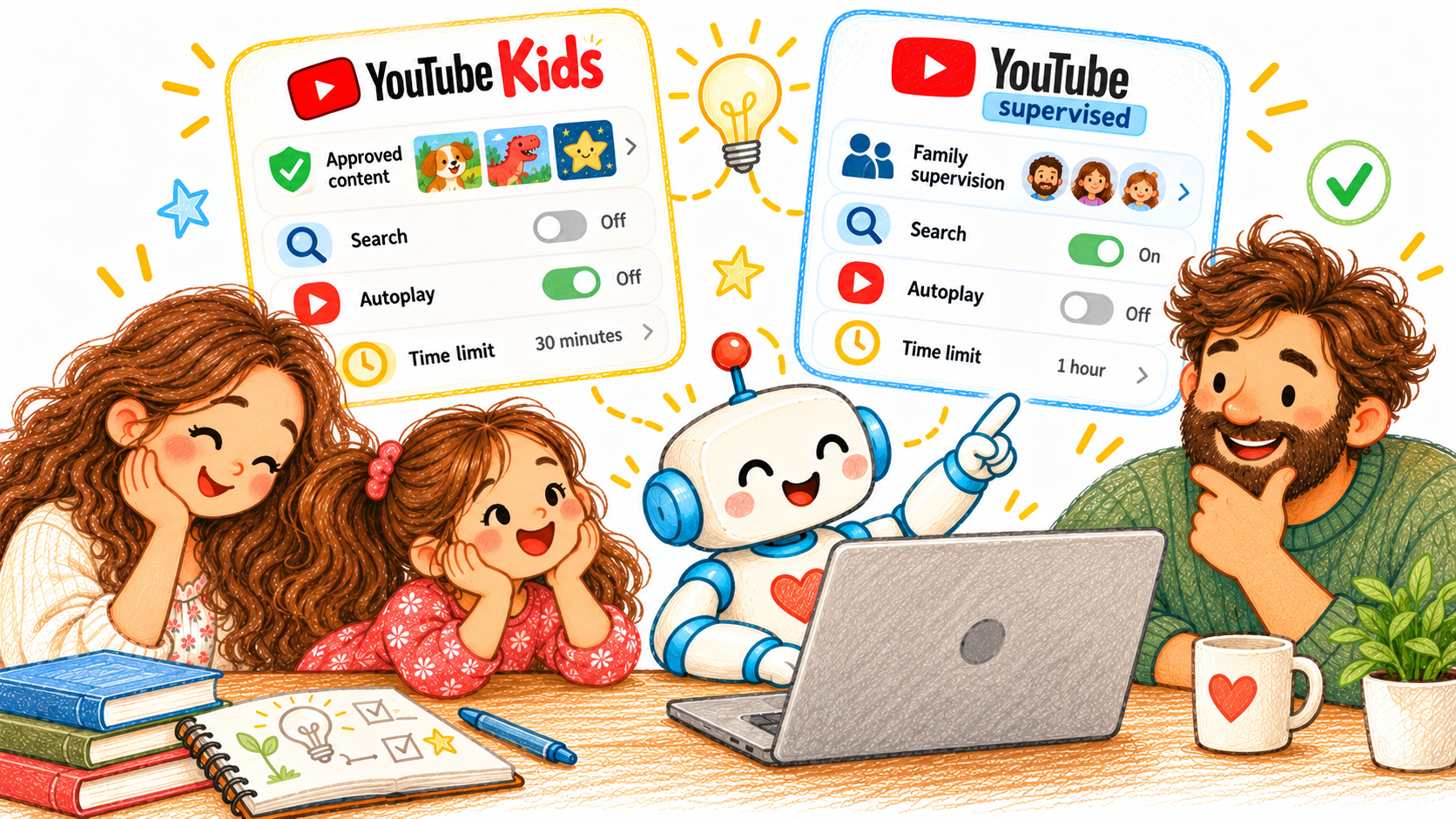
- Use a supervised profile: Google supports setup on a parent’s shared device or, for a child’s device, through a linked supervised Google Account. Official setup routes.
- Review the content level together: Open the linked parent’s YouTube Family Center or Family Link and preview the available level. Where to find it.
- Control the next video: Check the Disable autoplay setting. You can also review pausing watch or search history, which affects recommendation signals. Google’s controls.
- Review short-form viewing: Family Center has a daily Shorts-feed limit for eligible supervised accounts; verify its availability and behavior on your device. Shorts settings.
- Agree on an escape route: Tell your child that if a video feels upsetting, odd or inappropriate, they can show you without automatically being blamed for encountering it.
Three situations reveal which choice fits
A child wants a handful of familiar channels
Start with YouTube Kids. If control is more important than discovery, the parent-approved mode offers the most deliberate selection. You do not need a bigger catalogue just because one exists.
A child wants a specific tutorial YouTube Kids cannot find
Consider supervised YouTube with the narrowest suitable level, at least initially with you nearby. You are introducing a bigger set of choices—and an opportunity to practise choosing.
A child keeps drifting into unrelated recommendations
Changing apps alone may not fix it. Review autoplay and discovery controls, decide what the viewing session is for, and check the videos that appear next. Watching one planned lesson and following twenty unrelated suggestions are different experiences, even if the clock shows the same duration.
A 15-minute family test before you change anything
- Ask your child to choose one thing they want to watch or learn today.
- Find it in your current child-safe experience. Notice whether the relevant video is actually missing.
- If you are considering switching, look at supervised YouTube together. Inspect the suggested videos surrounding the target video, not only the target itself.
- Ask yourself, “Would I be comfortable with my child choosing from this next row without me?” If not, tighten settings or return to an approved library.
- Choose a stopping point and revisit the experience after a week. This is a suggested family experiment, not a validated assessment of readiness.
I built WonderKid TV partly because I was interested in the difference between a useful video and everything that comes after it. That is my own project, not an independent evaluation of either YouTube product. The story is here: The Problem Wasn’t YouTube. It Was What Came Next.
Choose the library you can explain to your child
Choose YouTube Kids for a smaller or explicitly approved collection; choose supervised YouTube when the broader library adds real value and your child can practise judgment with your support. Neither is a substitute for occasionally watching together, noticing what changed, and revisiting the decision.
One good question to end with: “If I wasn’t beside you, how would you decide which video to watch next?” That’s a more useful conversation than arguing over which app icon belongs on the home screen.
For a printable family discussion about screens, visit the Free Parent Toolkit. Or choose your own starting question.
Official sources and scope
- YouTube Help: Understand your choices as a family
- YouTube Help: What videos are available in YouTube Kids
- YouTube Help: Content settings for kids and teens
- YouTube Help: Setting up supervised child accounts
- YouTube Help: Supervised child account controls
Sources checked 18 October 2026. This article summarizes platform documentation, not firsthand testing of every account, device or country. I’m an engineer dad, not a YouTube representative or child-development professional. Platform settings change; always consult the latest official documentation for your child’s account.


Leave a Reply